
Can You Put More Apps on CarPlay and How to Do That
Yes, you can put more apps on CarPlay by adjusting your iPhone settings, updating apps, and using the CarPlay app drawer. This guide covers how to add apps, troubleshoot missing apps, and customize your CarPlay screen for a smoother, safer driving experience.
You hop into your car, connect your iPhone, and stare at the CarPlay screen. Something feels off. Where did all your apps go? Or maybe you just want to add a few more apps to your Apple CarPlay setup but you are not sure if it is even possible.
The good news is that yes, you can put more apps on CarPlay. Apple designed CarPlay to be flexible and customizable. Whether you love music apps, navigation tools, or messaging platforms, there is a way to get them onto your car screen. In this article, we will walk you through everything you need to know about adding apps to CarPlay, fixing common problems, and getting the most out of your CarPlay experience.
Let us be real for a second. CarPlay is one of the best features Apple has ever put into a car. It keeps your eyes on the road and your hands on the wheel. But many drivers feel limited by the default app selection. The truth is, Apple CarPlay supports a wide range of third-party CarPlay apps. You just need to know where to look and how to set them up. That is exactly what this guide is for.
Key Takeaways
- CarPlay supports many third-party apps: You are not limited to Apple apps alone. Most popular apps work with CarPlay.
- Adding apps is simple: Go to Settings, customize your CarPlay screen, and pin your favorites.
- Missing apps usually have a fix: Update iOS, check app compatibility, or restart CarPlay to bring them back.
- You can organize your app layout: Rearrange apps, set default apps, and create a personalized driving dashboard.
- Not all apps are CarPlay compatible: Always check the App Store or the developer’s website before expecting full support.
- Regular updates keep things running: Updating your iPhone and CarPlay apps prevents most common issues.
📑 Table of Contents
- Understanding How CarPlay Apps Work
- How to Add More Apps to CarPlay
- Troubleshooting: Why Your CarPlay Apps Are Missing
- Customizing Your CarPlay Experience
- CarPlay App Limits and What to Know
- Expert Tips for Getting the Most Out of CarPlay Apps
- Common Mistakes People Make with CarPlay Apps
- Frequently Asked Questions
- Conclusion
Understanding How CarPlay Apps Work
Before you start adding apps, it helps to understand how CarPlay app management actually works. Many people assume CarPlay is just a mirror of their iPhone screen. That is not entirely true. CarPlay is a smart system that lets certain apps display in a driver-friendly format on your car infotainment screen.
What Makes an App CarPlay Compatible?
Not every app on your iPhone works with CarPlay. Apple has specific guidelines that developers must follow. An app needs to have a CarPlay-enabled version to appear on your car screen. Here are some key things to know:
- CarPlay-compatible apps must follow Apple’s design guidelines for safe driving.
- Navigation apps like Google Maps and Waze are fully supported.
- Music and podcast apps such as Spotify, Apple Music, and Pocket Casts work great.
- Messaging apps like WhatsApp and Telegram offer CarPlay support with voice replies.
- Some apps may only offer partial CarPlay features, like audio playback without full screen access.
When you download a new app, check the App Store description. Most developers clearly state if their app supports iOS CarPlay. If you do not see a CarPlay mention, the app likely does not support it yet.
How CarPlay Displays Your Apps
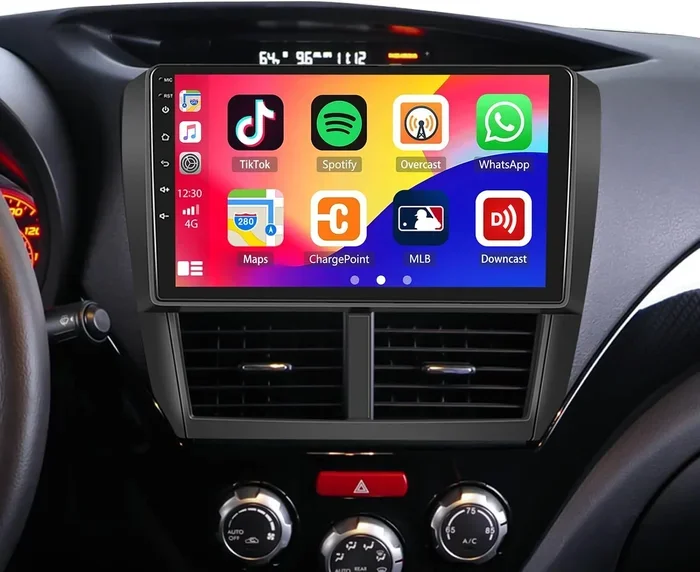
CarPlay organizes your apps into a clean, easy-to-read layout. The CarPlay app drawer is where all your compatible apps live. You can access it by swiping right on the CarPlay home screen. From there, you can scroll through your apps and pin the ones you use most.
The home screen shows your favorite CarPlay apps in large tiles. These tiles are designed for quick access while driving. You can have up to 12 apps visible on the home screen at once. The rest live in the app drawer, ready for you to pin whenever you want.
How to Add More Apps to CarPlay
Now for the part you have been waiting for. Adding apps to CarPlay is straightforward once you know the steps. There are a few different methods depending on what you are trying to do. Let us break them down.
Method 1: Pin Apps from the CarPlay Screen
This is the easiest way to add apps directly from your car. Here is what to do:
- Connect your iPhone to your car using a Lightning or USB-C cable.
- Wait for CarPlay to load on your infotainment screen.
- Swipe right on the home screen to open the CarPlay app drawer.
- Find the app you want to add to your home screen.
- Touch and hold the app icon.
- Tap “Add to Home Screen” or drag it to the home screen layout.
That is it. The app now appears on your CarPlay home screen. You can repeat this process for as many apps as you want, up to the 12-app limit.
Method 2: Use iPhone Settings to Customize CarPlay
You can also manage your CarPlay apps from your iPhone. This method gives you more control over which apps show up. Here is how:
- Open the Settings app on your iPhone.
- Scroll down and tap General.
- Tap CarPlay.
- Select your car from the list.
- Tap “Customize”
- You will see all your CarPlay compatible apps listed here.
- Toggle on the apps you want to appear.
- Drag and drop to rearrange the order.
- Tap “Done” when you are happy with the layout.
This method is especially useful if you want to reorganize your entire CarPlay dashboard. You can set your most-used apps front and center for quick access while driving.
Method 3: Download CarPlay-Compatible Apps from the App Store
If you want brand new apps on your CarPlay screen, you need to download them first. Here is a quick guide:
- Open the App Store on your iPhone.
- Search for the type of app you want (navigation, music, podcasts, etc.).
- Look for the “Works with CarPlay” badge on the app page.
- Download and install the app.
- Open CarPlay on your car screen.
- Go to Settings, select CarPlay, and customize your screen.
- Find the new app and pin it to your home screen.
Some of the most popular CarPlay media apps include Spotify, Amazon Music, Audible, and YouTube Music (with audio only). For navigation, Google Maps, Waze, and Apple Maps are top choices.Troubleshooting: Why Your CarPlay Apps Are Missing
Sometimes things do not go as planned. You follow all the steps, but certain apps still do not show up on CarPlay. This is frustrating, but it is usually fixable. Let us look at the most common reasons and solutions.
App Is Not CarPlay Compatible
The most obvious reason is that the app simply does not support CarPlay. Not every iPhone app has a CarPlay version. Before you troubleshoot, double-check that the app is CarPlay enabled. You can do this by visiting the app’s page in the App Store and looking for the CarPlay badge. If it is not there, the app developer has not made a CarPlay version yet.
Your iPhone or CarPlay Needs an Update
Outdated software is one of the top reasons apps go missing on CarPlay. Apple frequently releases updates that improve CarPlay compatibility. Here is what to check:
- Go to Settings > General > Software Update on your iPhone.
- Install any available iOS updates.
- Check your car’s infotainment system for updates too.
- Restart both your iPhone and your car’s infotainment system.
After updating, reconnect CarPlay and see if your missing apps reappear. This simple step fixes the problem more often than you might think.
CarPlay Needs to Be Reset
Sometimes CarPlay just needs a fresh start. Resetting CarPlay can resolve display issues and bring back missing apps. Try these steps:
- Disconnect your iPhone from the car.
- Turn off your car’s infotainment system completely.
- Wait about 30 seconds.
- Turn the car back on.
- Reconnect your iPhone.
- Wait for CarPlay to load fully.
If that does not work, you can also reset CarPlay from your iPhone. Go to Settings > General > CarPlay, select your car, and tap “Forget This Car.” Then reconnect your iPhone and set up CarPlay again from scratch.
App Permissions or Restrictions
Occasionally, app permissions can block CarPlay access. Make sure the app has the right permissions enabled. Go to Settings > Privacy & Security and check that the app has access to the features it needs. For example, a navigation app needs location access to work properly on CarPlay.
Customizing Your CarPlay Experience
Once you have your apps set up, you can take your CarPlay customization to the next level. Apple gives you several options to make CarPlay feel like your own personal driving dashboard.
Setting Default Apps
You can set default apps for common actions on CarPlay. This means when you tap a certain function, your preferred app opens automatically. For example, you can set Google Maps as your default navigation app instead of Apple Maps. To do this:
- Go to Settings on your iPhone.
- Scroll down to the app you want to set as default (like Maps).
- Tap “Default App” or “CarPlay Default.”
- Select your preferred app.
This small tweak can make a big difference in your daily driving routine. You spend less time switching between apps and more time focusing on the road.
Organizing Apps by Frequency of Use
Think about how you use your apps while driving. Navigation probably comes first. Then maybe music or podcasts. Messaging is usually last. Arrange your CarPlay home screen in that order. The apps you reach for most often should be the easiest to find.
Here is a suggested layout for a typical driver:
- Navigation app (Google Maps or Waze)
- Music app (Spotify or Apple Music)
- Podcast app (Pocket Casts or Apple Podcasts)
- Messaging app (WhatsApp or Messages)
- Parking app (ParkMobile or SpotHero)
Keep the rest of your apps in the app drawer. This keeps your CarPlay home screen clean and uncluttered. A clean screen means less distraction while driving.
Using Siri with CarPlay Apps
One of the best things about CarPlay is Siri integration. You can use voice commands to open apps, play music, and send messages without touching your screen. Try saying “Hey Siri, open Spotify” or “Hey Siri, navigate to the nearest gas station.” This keeps your hands on the wheel and your eyes on the road.
CarPlay App Limits and What to Know
Apple does place some limits on CarPlay, and it is important to understand them. The CarPlay app limit is 12 apps on the home screen at one time. However, you can access many more apps through the app drawer. There is no hard cap on how many total apps can appear in CarPlay, but only 12 get the prime home screen real estate.
Also, keep in mind that some apps may behave differently on CarPlay compared to your iPhone. For instance, a video streaming app might only offer audio playback on CarPlay, since video is restricted while driving for safety reasons. This is by design and helps keep everyone on the road safer.
Another thing to know is that CarPlay compatibility can vary depending on your car model and infotainment system. Not all cars support every CarPlay feature. Newer cars tend to have better CarPlay support than older models. If you are having persistent issues, check with your car manufacturer to see if your system supports the latest CarPlay features.
Expert Tips for Getting the Most Out of CarPlay Apps
Here are some practical tips from people who use CarPlay every day. These small changes can make a big difference in your daily driving experience.
- Keep your iPhone charged. CarPlay uses a lot of battery. Plug in your phone every time you drive to avoid power drain.
- Use Siri for hands-free control. This is the safest way to interact with apps while driving.
- Remove apps you never use. A cleaner CarPlay screen means less distraction and faster access to the apps you actually need.
- Check for app updates regularly. Developers often improve CarPlay support with each update.
- Restart your car’s infotainment system weekly. This clears temporary glitches and keeps CarPlay running smoothly.
- Explore new apps monthly. New CarPlay-compatible apps come out regularly. Check the App Store for recent additions.
These tips might seem small, but they add up. A well-organized CarPlay setup saves you time, reduces frustration, and makes every drive more enjoyable.
Common Mistakes People Make with CarPlay Apps
Avoid these common pitfalls to keep your CarPlay running at its best:
- Assuming all iPhone apps work with CarPlay. They do not. Always check for CarPlay support before downloading.
- Ignoring software updates. Outdated iOS versions can cause apps to disappear from CarPlay.
- Overloading your home screen. Stuffing too many apps onto the home screen makes it harder to find what you need quickly.
- Forgetting to check app permissions. Without the right permissions, apps may not function properly on CarPlay.
- Not restarting CarPlay after adding new apps. Sometimes you need to disconnect and reconnect for new apps to appear.
Steering clear of these mistakes will keep your CarPlay app setup running smoothly for months and years to come.
Frequently Asked Questions
Can I add any app to CarPlay?
No, not every app supports CarPlay. The app must be specifically designed to work with CarPlay. Check the App Store for the “Works with CarPlay” badge before downloading. Popular apps like Spotify, Google Maps, WhatsApp, and Audible are widely supported, but niche apps may not have CarPlay versions yet.
Why are my CarPlay apps not showing up?
Missing apps are usually caused by outdated software, incompatible apps, or a need to reset CarPlay. Try updating your iPhone, checking app compatibility, and resetting your CarPlay connection. Most of the time, one of these steps brings your missing apps back to the screen.
Is there a limit to how many apps I can add to CarPlay?
You can display up to 12 apps on the CarPlay home screen at once. However, you can access many more apps through the app drawer. There is no strict limit on the total number of CarPlay-compatible apps you can use. The 12-app limit just applies to what shows on the home screen.
Do I need to buy a special cable for CarPlay apps to work?
You need a compatible cable to connect your iPhone to your car. A standard Lightning or USB-C cable usually works. Some cars support wireless CarPlay, which eliminates the need for a cable entirely. If your apps are not showing up, try a different cable first before assuming something is wrong.
Can I use CarPlay apps while the car is parked?
Yes, most CarPlay apps work when the car is parked. However, some features like video playback are restricted while the car is in motion for safety reasons. When parked, you can use the full range of CarPlay app features, including video, messaging, and navigation.
How do I update my CarPlay apps?
CarPlay apps update through the App Store just like any other iPhone app. Go to the App Store, tap your profile icon, and scroll down to see pending updates. Keeping your apps updated ensures the best CarPlay compatibility and access to the latest features.
Conclusion
Can you put more apps on CarPlay? Absolutely. Apple CarPlay gives you the power to customize your car screen with the apps you actually use. From navigation and music to messaging and podcasts, the right setup can transform your daily drives. The key is understanding how CarPlay works, knowing which apps are compatible, and taking a few minutes to organize your layout.
Remember, adding apps to CarPlay is not complicated. You can pin apps directly from the CarPlay screen, manage them through iPhone Settings, or download new compatible apps from the App Store. If apps go missing, the fixes are usually simple: update your software, reset CarPlay, or check app compatibility.
Take some time today to review your CarPlay setup. Remove the apps you never use, pin the ones you love, and explore new options. A well-organized CarPlay screen makes driving safer, more enjoyable, and more connected. Your car and your iPhone can work together beautifully when you put in a little effort. Start customizing your CarPlay today and see the difference it makes on your next drive.


One Comment