How Do I Change What Appears on Startup on Your PC
Changing what appears on startup on your PC is simpler than you think. You can control which apps launch, adjust your boot sequence, and even tweak Windows startup settings to save time and boost performance. This guide walks you through every method step by step.
Have you ever turned on your computer and felt like it takes forever to get to your desktop? You sit there staring at a wall of icons and pop-up windows before you can even start working. The good news is that you have full control over what appears on startup. With a few simple changes, you can make your PC boot faster and show only what you actually need.
Whether you are dealing with too many startup programs or you want to change the boot sequence on your machine, this guide covers it all. We will walk you through every method in plain, easy-to-follow steps. You do not need to be a tech expert to make these changes. By the end, you will know exactly how to customize your Windows startup experience and speed up your daily routine.
Think about how much time you waste waiting for your computer each morning. Those extra minutes add up fast. Learning how to manage your startup settings is one of the easiest ways to reclaim that time. Let us dive in and take back control of your PC boot process.
Key Takeaways
- Task Manager is your best friend: It lets you quickly disable or enable startup apps that slow down your PC boot time.
- The Startup folder offers another easy route: You can add or remove shortcuts to control what launches when you turn on your computer.
- BIOS startup settings give advanced users more control: You can change the boot sequence and set your default startup program for the whole system.
- System configuration tools help troubleshoot: Use msconfig and startup repair features to fix boot issues safely.
- Small changes add up: Disabling just a few autostart applications can cut your PC boot time dramatically.
- Mac users have their own path: Login items and system preferences work just like Windows startup settings on Apple computers.
📑 Table of Contents
- Understanding What Happens During Startup
- Using Task Manager to Manage Startup Apps
- Using the Startup Folder for Quick Control
- Advanced Startup Settings and System Configuration
- Mac Startup Settings for Apple Users
- Comparing Startup Management Methods
- Quick Tips to Improve Startup Performance
- Key Takeaways
- Conclusion
Understanding What Happens During Startup
When you press the power button, your PC goes through a series of steps before you see your desktop. This process is called the boot sequence. First, the BIOS startup routine checks your hardware. Then the operating system loads. Finally, any programs set to launch automatically begin running in the background.
Many people do not realize how many autostart applications are quietly running every time they turn on their computer. These startup programs can include messaging apps, cloud storage tools, antivirus software, and even games. Each one adds to your PC boot time and uses valuable system memory.
Why Default Startup Programs Matter
Your default startup program list is not random. Windows and other operating systems choose certain apps to launch automatically because they think you will need them. For example, your antivirus tool might start right away to protect you from threats. But some apps launch without you ever asking them to.
The key is understanding that every autostart application uses a small slice of your system resources. When too many programs launch at once, your startup performance drops. Your PC feels sluggish, and you may even notice the system tray filling up with icons before you can do anything.
How the Boot Sequence Works
The boot sequence is the order in which your computer loads its core systems. It starts with the BIOS or UEFI firmware checking your hardware. Next, it hands control to the boot loader, which finds the operating system. Finally, Windows loads the kernel and starts the login process.
After you log in, the system loads your user profile and launches any programs in your startup folder. This is where the startup delay comes in. Windows intentionally staggers some launches to keep the system from being overwhelmed. But even with this delay, too many apps can slow things down significantly.
Using Task Manager to Manage Startup Apps
The Task Manager is the most powerful and easiest tool for managing what appears on startup. It gives you a clear list of every program set to launch automatically. You can quickly disable startup apps or re-enable them whenever you want.
To open Task Manager, right-click on your taskbar and select Task Manager. If you see a simple window, click More Details at the bottom. Then navigate to the Startup Apps tab. You will see a full list of programs with their startup impact rated as Low, Medium, or High.
How to Disable Startup Programs
Disabling a startup program does not uninstall it. It simply stops it from launching automatically when you turn on your PC. This is a safe and reversible change. Here is how to do it:
- Open Task Manager using the right-click method on your taskbar.
- Click on the Startup Apps tab at the top.
- Find the program you want to stop from launching.
- Right-click on it and select Disable.
- Repeat for any other programs you do not need at startup.
Focus first on programs with a High startup impact. These are the ones that slow down your PC boot time the most. Common culprits include Spotify, Skype, and Adobe updaters. You can always launch these apps manually when you need them.
How to Enable Startup Apps
Maybe you disabled something by accident or you want a specific app to launch automatically again. Enabling startup apps is just as easy:
- Open Task Manager and go to the Startup Apps tab.
- Find the program you want to enable.
- Right-click on it and select Enable.
- Restart your computer to test the change.
Quick tip: Only enable apps that you truly use every day. If you only open a program once a week, it does not need to be in your startup folder or autostart list.
Using the Startup Folder for Quick Control
The Startup folder is another handy way to manage what appears on startup. It works a bit differently than Task Manager but achieves the same goal. Any shortcut placed in this folder will launch automatically when you log in.
To find your Startup folder, press the Windows key and R at the same time. Type shell:startup and press Enter. A folder will open showing all your current startup items. You can add or remove shortcuts here to control your startup programs.
Adding Programs to the Startup Folder
Want a specific app to open every time you start your PC? Adding it to the Startup folder is quick and easy:
- Find the program you want to auto-launch on your desktop or Start menu.
- Right-click on it and select Open file location.
- Right-click the program icon and choose Create shortcut.
- Copy the shortcut and paste it into the shell:startup folder.
Now every time you turn on your computer, that program will launch automatically. This is great for tools you use constantly, like a password manager or a note-taking app.
Removing Programs from the Startup Folder
Getting rid of an app from the Startup folder is just as simple. Open the shell:startup folder, find the shortcut you do not want, and delete it. The app itself stays installed. It just will not launch automatically anymore.
Quick tip: Do not delete the actual program file. Only delete the shortcut from the Startup folder. Deleting the real file could break the app entirely.
Advanced Startup Settings and System Configuration
For users who want deeper control over their startup experience, Windows offers several advanced tools. The System Configuration utility, also known as msconfig, lets you tweak boot options and manage startup services beyond what Task Manager shows.
To open msconfig, press the Windows key, type msconfig, and hit Enter. Go to the Services tab and check the box that says Hide all Microsoft services. This prevents you from accidentally disabling something important. What remains are third-party services that you can safely manage.
Changing the Boot Sequence
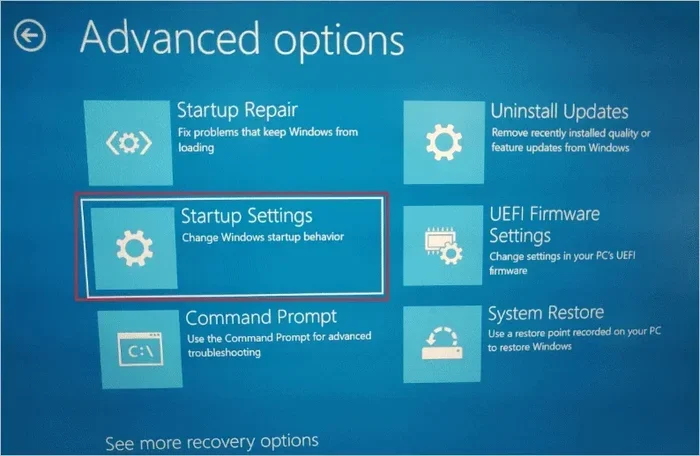
The boot sequence determines which drive or device your PC tries to start from first. If you need to change this, you will need to enter your BIOS startup settings. Here is the general process:
- Restart your computer and press the BIOS key during boot (usually F2, F12, Del, or Esc).
- Navigate to the Boot or Startup section in the BIOS menu.
- Change the boot order to put your preferred drive first.
- Save your changes and exit.
Changing the boot sequence is especially useful if you are dual-booting between operating systems or trying to boot from a USB drive for repairs. Just remember that BIOS settings vary by manufacturer, so your exact steps may differ slightly.
Using System Configuration for Troubleshooting
System Configuration is not just for managing startup items. It is also a powerful troubleshooting tool. If your PC is having startup issues, you can use msconfig to perform a clean boot. This starts Windows with only the essential services and drivers, helping you identify what is causing the problem.
To do a clean boot, go to the Services tab in msconfig, click Disable all, then go to the Startup tab and open Task Manager to disable all startup apps. Restart your PC and test it. If the problem goes away, you know one of the disabled items was the culprit.
Mac Startup Settings for Apple Users
If you use a Mac instead of a Windows PC, the process is a little different but just as effective. Apple calls auto-launch items Login Items. You can manage these through System Preferences or System Settings, depending on your macOS version.
To change login items on a Mac, click the Apple menu and select System Settings. Go to General and then Login Items. You will see a list of apps that launch on startup. Toggle off any app you do not want to auto-start. You can also add new items by clicking the plus button and selecting an app from your Applications folder.
Mac users can also access Startup Disk settings in System Settings to choose which drive to boot from. This is similar to changing the boot sequence on a Windows PC and is useful if you have multiple drives or operating systems installed.
Comparing Startup Management Methods
There are several ways to change what appears on startup, and each has its own strengths. Here is a quick comparison to help you choose the right method for your needs.
| Method | Best For | Difficulty Level | Controls |
|---|---|---|---|
| Task Manager | Quickly enabling or disabling startup apps | Easy | Startup programs only |
| Startup Folder | Adding or removing specific shortcuts | Easy | User-level startup items |
| System Configuration (msconfig) | Advanced troubleshooting and clean boots | Medium | Services and startup items |
| BIOS Settings | Changing boot sequence and hardware priority | Advanced | System-level boot options |
| Mac System Settings | Managing login items on Apple computers | Easy | Login items and startup disk |
For most users, Task Manager and the Startup folder will handle everything you need. Advanced users and troubleshooters will find msconfig and BIOS settings especially valuable for deeper control over the boot sequence and startup repair tasks.
Quick Tips to Improve Startup Performance
Once you have cleaned up your startup programs, you can take a few extra steps to make your PC even faster. Here are some quick tips that make a real difference:
- Restart your PC regularly. A fresh restart clears temporary files and resets the startup delay for any lingering apps.
- Update your software. Outdated apps can cause slow boot times and startup errors. Keep everything current.
- Check for malware. Some autostart applications are unwanted programs that sneak onto your PC. Run a full antivirus scan regularly.
- Use startup delay wisely. Windows staggers some launches by design. Do not try to force everything to start at once.
- Review your startup items monthly. New apps often add themselves to the startup list without asking you. A quick check keeps things tidy.
Common Mistakes to Avoid
While managing startup items is straightforward, there are a few common mistakes that can cause problems. First, never disable system services or critical Windows processes in msconfig. These are there for a reason, and turning them off can break your system.
Second, do not confuse disabling a startup app with uninstalling it. If you want to completely remove a program, use the Apps & Features settings in Windows. Simply disabling it in Task Manager keeps the app installed but stops it from launching automatically.
Third, be careful when editing BIOS startup settings. Changing the wrong boot order can prevent your PC from starting at all. If you are not sure, stick to the default settings and only change what you understand fully.
Expert Insight from a Tech Pro
According to PC repair specialists, the single biggest cause of slow startup performance is too many autostart applications. Most users have 15 to 20 programs set to launch at startup, and they rarely need more than five. A quick audit using Task Manager can cut boot time in half or more. The key is to keep your startup folder lean and only auto-launch the tools you truly use every single day.
Key Takeaways
- Task Manager is your best friend: It lets you quickly disable or enable startup apps that slow down your PC boot time.
- The Startup folder offers another easy route: You can add or remove shortcuts to control what launches when you turn on your computer.
- BIOS startup settings give advanced users more control: You can change the boot sequence and set your default startup program for the whole system.
- System configuration tools help troubleshoot: Use msconfig and startup repair features to fix boot issues safely.
- Small changes add up: Disabling just a few autostart applications can cut your PC boot time dramatically.
- Mac users have their own path: Login items and system preferences work just like Windows startup settings on Apple computers.
Conclusion
Changing what appears on startup on your PC is one of the easiest and most impactful things you can do for your daily workflow. Whether you use Task Manager, the Startup folder, or advanced tools like msconfig, you now have everything you need to take control of your boot sequence and startup performance.
Remember that every program you remove from autostart is a small victory for speed and simplicity. Your PC will boot faster, run smoother, and feel more responsive from the moment you press the power button. Start with the apps you recognize and do not need at launch, and build from there.
Do not let a cluttered startup folder slow you down any longer. Apply the tips in this guide today, and enjoy a cleaner, faster PC experience every single morning. Once you see the difference, you will wonder why you did not make these changes sooner.
Frequently Asked Questions
How do I change what appears on startup on Windows 11?
Open Task Manager by right-clicking your taskbar and selecting Task Manager. Go to the Startup Apps tab to see all programs set to launch automatically. Right-click any app and choose Disable to stop it from appearing on startup. You can also use the Startup folder by pressing Windows+R and typing shell:startup.
Can changing startup programs speed up my PC boot time?
Absolutely. Every autostart application uses system resources during the boot sequence. By disabling unnecessary startup programs through Task Manager, you can significantly reduce your PC boot time. Focus on programs with a High startup impact rating for the biggest improvement.
Is it safe to disable startup programs?
Yes, it is generally safe. Disabling a startup program does not uninstall it. The app will still work normally when you open it manually. However, avoid disabling critical system services or security software like your antivirus. Stick to third-party apps you recognize and do not need running in the background.
How do I access BIOS startup settings?
Restart your computer and press the BIOS key during boot. Common keys include F2, F12, Del, or Esc depending on your PC manufacturer. Once in the BIOS menu, navigate to the Boot section to change the boot sequence or adjust other startup-related settings. Save your changes before exiting.
What is the difference between startup programs and startup services?
Startup programs are user-facing applications like Spotify or Skype that launch when you log in. Startup services are background processes that run at the system level, often before you even log in. Task Manager shows startup programs, while msconfig gives you access to both services and startup items for deeper control.
How often should I review my startup items?
A monthly review is a good habit. New software often adds itself to the startup list without asking. By checking your startup programs regularly, you can catch unwanted autostart applications early and keep your PC running at peak startup performance. It only takes a few minutes and makes a big difference over time.