Can I Add Apps to CarPlay Everything You Need to Know
Yes, you can add apps to CarPlay, and it is simpler than most people think. Apple CarPlay lets you access a growing library of compatible apps right from your car’s display. Whether you want better navigation, music, messaging, or productivity tools, adding apps to CarPlay can transform your daily drives into a smarter, safer experience.
You are driving down the highway. Your iPhone is connected to your car through Apple CarPlay. You glance at the screen and wonder, can I add apps to CarPlay? Maybe you want a better map app, a new music player, or a way to check your messages more easily. The good news is that adding apps to CarPlay is not only possible but also really simple.
Apple CarPlay has come a long way since it first launched. What started as a basic phone mirroring tool has grown into a full-featured driving companion. Today, you can access dozens of CarPlay compatible apps for navigation, music, podcasts, messaging, and even parking. Whether you drive a new sedan or an older model with an aftermarket CarPlay head unit, there is a good chance you can expand your app options.
This guide will walk you through everything you need to know about adding apps to CarPlay. We will cover which apps work, how to install them, what limitations exist, and how to get the best experience. By the end, you will feel confident customizing your CarPlay setup exactly the way you want it.
Key Takeaways
- CarPlay supports a wide range of apps: You can add navigation, music, messaging, and podcast apps to Apple CarPlay with ease.
- Adding apps is straightforward: Simply download apps from the App Store, connect your iPhone, and they appear on your CarPlay screen.
- Not all apps work with CarPlay: Apple approves only certain apps for CarPlay, so always check compatibility before downloading.
- Wireless and wired CarPlay both support apps: You can add apps whether you use a cable or a wireless connection.
- Third-party apps expand CarPlay’s usefulness: Apps like Google Maps, Spotify, and WhatsApp bring extra features to your car’s display.
- Keeping apps updated matters: Regular updates ensure smooth performance and new features on CarPlay.
- Customization is possible: You can rearrange and prioritize your CarPlay apps for a personalized driving experience.
📑 Table of Contents
- What Is Apple CarPlay and How Does It Work?
- Can You Add Apps to CarPlay?
- How to Add Apps to CarPlay Step by Step
- Top CarPlay Apps You Should Consider Adding
- CarPlay App Limitations and What to Know
- Tips for Getting the Most Out of CarPlay Apps
- Common Mistakes People Make with CarPlay Apps
- Expert Insights on CarPlay App Compatibility
- Key Takeaways
- Frequently Asked Questions
- Conclusion
What Is Apple CarPlay and How Does It Work?
Before we dive into adding apps, let us quickly cover what Apple CarPlay actually is. Think of CarPlay as a bridge between your iPhone and your car’s infotainment system. When you plug in your iPhone or connect wirelessly, CarPlay projects a simplified version of your phone’s interface onto your car’s screen.
The idea behind iOS CarPlay is safety. Instead of fiddling with your phone while driving, you use large buttons, voice commands through Siri, and touch controls on your car’s display. This keeps your eyes on the road and your hands on the wheel.
How CarPlay Connects to Your Vehicle
There are two main ways to connect iPhone CarPlay to your car:
- Wired CarPlay: You use a Lightning or USB-C cable to connect your iPhone directly to your car’s USB port. This method is reliable and works with almost all CarPlay-enabled vehicles.
- Wireless CarPlay: Your iPhone connects to your car through Wi-Fi and Bluetooth. No cables needed. Many newer cars support this feature, and you can also add wireless CarPlay support through aftermarket adapters.
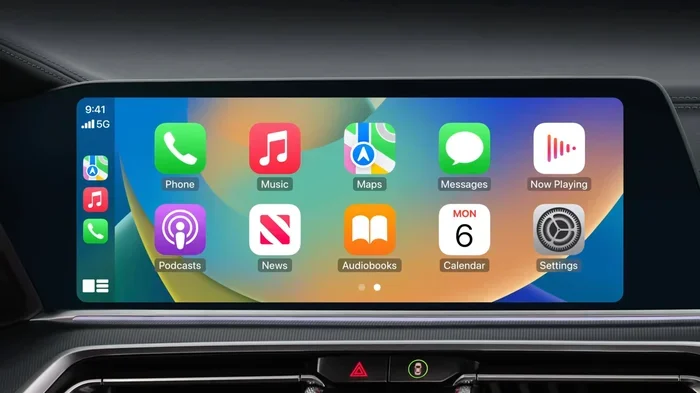
Both wired and wireless connections support CarPlay compatible apps. The way you connect does not limit which apps you can use. Once connected, your CarPlay home screen appears with rows of app icons. These icons represent the apps that work with CarPlay.
What Apps Come Preloaded with CarPlay?
When you first set up Apple CarPlay, you will see a few built-in apps. These typically include Phone, Messages, Music, Maps, and Podcasts. Apple also includes Siri as your voice assistant. These default apps give you the essentials for making calls, sending texts, listening to music, and getting directions.
However, many drivers want more options. That is where adding apps to CarPlay comes in. You can expand your CarPlay experience far beyond the default apps.
Can You Add Apps to CarPlay?
The short answer is yes. You can add apps to CarPlay as long as those apps are designed to work with the CarPlay interface. Apple maintains a list of CarPlay supported apps that meet their guidelines for safety and usability. These guidelines ensure that apps on CarPlay are easy to use while driving and do not create distractions.
Not every iPhone app can run on CarPlay. Apps need to be specifically built or updated to support the CarPlay interface. This means you cannot just mirror any app from your iPhone onto your car screen. But the good news is that the library of CarPlay compatible apps grows every year.
Types of Apps You Can Add to CarPlay
Apple CarPlay supports many different categories of apps. Here are the main types of CarPlay app categories you can add:
- Navigation Apps: Google Maps, Waze, Apple Maps, and Sygic are popular choices for turn-by-turn directions.
- Music and Audio Apps: Spotify, Apple Music, Pandora, Amazon Music, and iHeartRadio let you stream songs and podcasts.
- Messaging Apps: WhatsApp, Telegram, and iMessage allow you to send and receive messages hands-free.
- Podcast Apps: Overcast, Pocket Casts, and Castro bring your favorite shows to your car’s display.
- Audiobook Apps: Audible and Libby let you listen to books during your commute or road trips.
- Parking Apps: apps like Parkopedia and SpotHero help you find and pay for parking.
- Riding and Taxi Apps: Uber and Lyft work with CarPlay for easy ride booking.
As you can see, the range of CarPlay third-party apps is impressive. Whether you need help finding a parking spot or want to try a new music app, there is likely a CarPlay compatible app for it.
How to Add Apps to CarPlay Step by Step
Adding apps to Apple CarPlay is a simple process. You do not need any special tools or technical skills. Just follow these steps and you will be up and running in minutes.
Step 1: Check That Your Car Supports CarPlay
First, make sure your car or infotainment system supports CarPlay compatible vehicles. Most cars made after 2016 offer CarPlay as an option or standard feature. If you are unsure, check your car’s manual or look for the CarPlay icon in your infotainment settings.
If your car does not have built-in CarPlay, do not worry. You can add aftermarket CarPlay head units from brands like Pioneer, Kenwood, and Alpine. These replace your factory radio and bring full CarPlay support to older vehicles.
Step 2: Download CarPlay-Compatible Apps from the App Store
Open the App Store on your iPhone and search for the app you want to use with CarPlay. Look for apps that mention CarPlay support in their description. Popular examples include:
- Google Maps
- Waze
- Spotify
- Pandora
- Overcast
- Audible
Download and install the apps you want. You do not need to do anything special within the app to make it CarPlay-ready. As long as the app supports CarPlay, it will automatically appear on your CarPlay screen once connected.
Step 3: Connect Your iPhone to CarPlay
Plug in your iPhone using a cable or connect wirelessly, depending on your car’s capabilities. Once connected, your CarPlay home screen will display. You should see the new apps you downloaded listed among the icons.
If you do not see a newly added app, try disconnecting and reconnecting your iPhone. Sometimes CarPlay needs a fresh connection to detect new apps.
Step 4: Arrange and Customize Your CarPlay Apps
One of the best things about CarPlay customization is that you can arrange your apps however you like. On your CarPlay home screen, tap and hold an app icon. Then drag it to a new position. You can also move apps between pages by sliding left or right.
Pro tip: Put your most-used apps on the first page for quick access. This way, you do not have to swipe through multiple screens while driving.
Step 5: Update Your Apps Regularly
App developers regularly release updates that improve CarPlay compatibility and add new features. Go to the App Store, tap your profile icon, and pull down to check for updates. Keeping your CarPlay supported apps up to date ensures the best performance.
Top CarPlay Apps You Should Consider Adding
Not sure which CarPlay apps to add? Here are some of the most popular and highly rated options across different categories.
Navigation Apps
While Apple Maps comes built in, many drivers prefer alternatives. Google Maps offers detailed satellite views and excellent traffic data. Waze is fantastic for real-time traffic alerts and police sightings from other drivers. Both apps are fully supported on Apple CarPlay and provide turn-by-turn directions with large, easy-to-read buttons.
Music and Streaming Apps
Spotify is one of the most downloaded CarPlay third-party apps. It lets you access your playlists, podcasts, and albums directly from your car screen. Pandora and Amazon Music are also excellent choices. If you prefer audiobooks, Audible integrates smoothly with CarPlay and remembers where you left off.
Messaging and Communication
WhatsApp and Telegram both work with CarPlay so you can send and receive messages without taking your hands off the wheel. Siri reads your messages aloud and can even dictate replies for you. This is one of the biggest safety benefits of iPhone CarPlay.
Podcast and Audio Apps
If you are a podcast fan, Overcast and Pocket Casts are top picks for CarPlay. They offer simple interfaces, smart playback controls, and seamless CarPlay integration. You can browse episodes, adjust playback speed, and queue up your next listen without distraction.
Parking Apps
Finding parking in busy cities can be stressful. Apps like Parkopedia and SpotHero show available spots near your destination and let you pay in advance. These CarPlay compatible apps save time and reduce the frustration of circling for a spot.
CarPlay App Limitations and What to Know
While adding apps to CarPlay is exciting, there are some limitations you should understand. Knowing these upfront helps set realistic expectations.
Apple’s Approval Process
Apple controls which apps can run on CarPlay. An app must meet specific design and safety guidelines to be approved. This means some popular iPhone apps simply do not have a CarPlay version yet. If an app does not list CarPlay support, you will not be able to use it on your car’s display.
App Functionality May Be Limited
Even when an app works with CarPlay, its features may be reduced compared to the full iPhone version. For example, a navigation app on CarPlay might not show all the same detail as on your phone. This is intentional. Apple designs CarPlay apps to be simple and distraction-free, which means fewer buttons and less on-screen information.
Not All Cars Support Every Feature
Some CarPlay compatible vehicles may not support every CarPlay feature. For instance, certain older CarPlay systems might not display weather apps or support Siri voice commands fully. Always check your car’s manual or the manufacturer’s website for a list of supported CarPlay features.
App Updates Can Change Compatibility
Sometimes an app that worked with CarPlay stops working after an update. This is rare but does happen. Developers occasionally change their app’s code, which can break CarPlay support. If this occurs, check for app updates or contact the developer for a fix.
Tips for Getting the Most Out of CarPlay Apps
Want to make the most of your CarPlay setup? Here are some practical tips that experienced CarPlay users swear by.
Use Siri for Hands-Free Control
Siri is your best friend when using CarPlay apps. You can say “Hey Siri, open Spotify” or “Hey Siri, navigate to the nearest gas station” without touching your screen. This keeps your eyes on the road and your hands on the wheel.
Enable Wireless CarPlay for Convenience
If your car supports it, switch to wireless CarPlay. You will never have to dig for a cable again. Your iPhone connects automatically when you get in the car. All your CarPlay supported apps load just as they would with a wired connection.
Organize Apps by Frequency of Use
Place your most-used apps on the first page of CarPlay. Navigation, music, and messaging apps should be easy to reach. Less frequently used apps like parking or ride services can go on secondary pages.
Use CarPlay’s Screen Mirroring for Maps
When using a navigation app like Google Maps or Waze, remember that CarPlay mirrors the driving view. You get large turn-by-turn directions that are easy to read at a glance. This is much safer than trying to follow a small phone screen mounted on your dashboard.
Keep Your iPhone Charged
Using CarPlay apps can drain your iPhone battery, especially on long drives. Use a quality car charger to keep your phone powered. A low battery can cause CarPlay to disconnect or apps to run slowly.
Explore New Apps Regularly
The world of CarPlay compatible apps is always expanding. Developers release new apps and update existing ones with CarPlay support regularly. Check the App Store periodically for new options that might improve your driving experience.
Common Mistakes People Make with CarPlay Apps
Avoid these common pitfalls to get the smoothest CarPlay app experience.
- Assuming all iPhone apps work with CarPlay: This is the number one mistake. Not every app supports CarPlay, so always check before downloading.
- Forgetting to update apps: Outdated apps can cause glitches or fail to appear on CarPlay. Update regularly.
- Overloading your home screen: Too many apps on one page makes CarPlay cluttered and hard to navigate. Keep it simple.
- Ignoring CarPlay settings: Your car’s infotainment settings may have options to manage which apps appear on CarPlay. Take a few minutes to explore these settings.
- Using apps while driving that require too much interaction: Even CarPlay-approved apps should be used minimally while the car is in motion. Pull over if you need to make a complex change.
Expert Insights on CarPlay App Compatibility
According to automotive tech experts, the CarPlay app ecosystem continues to improve with each iOS update. Apple has expanded the number of supported app categories and relaxed some restrictions, making it easier for developers to bring their apps to CarPlay. The trend points toward even more CarPlay compatible apps in the near future.
Experts also recommend focusing on apps that use CarPlay’s native interface rather than those that simply mirror a phone screen. Native CarPlay apps are designed with driving in mind. They use larger buttons, simpler layouts, and voice-friendly controls. This makes them safer and more enjoyable to use while driving.
One thing to keep in mind is that CarPlay aftermarket head units from brands like Pioneer and Kenwood often receive firmware updates that improve app compatibility. If you have an older aftermarket unit, check the manufacturer’s website for updates. These updates can unlock new CarPlay supported apps that were not available before.
Key Takeaways
- CarPlay supports a wide range of apps: You can add navigation, music, messaging, and podcast apps to Apple CarPlay with ease.
- Adding apps is straightforward: Simply download apps from the App Store, connect your iPhone, and they appear on your CarPlay screen.
- Not all apps work with CarPlay: Apple approves only certain apps for CarPlay, so always check compatibility before downloading.
- Wireless and wired CarPlay both support apps: You can add apps whether you use a cable or a wireless connection.
- Third-party apps expand CarPlay’s usefulness: Apps like Google Maps, Spotify, and WhatsApp bring extra features to your car’s display.
- Keeping apps updated matters: Regular updates ensure smooth performance and new features on CarPlay.
- Customization is possible: You can rearrange and prioritize your CarPlay apps for a personalized driving experience.
Frequently Asked Questions
Can I add any app from my iPhone to CarPlay?
No, you can only add apps that specifically support CarPlay. Apple requires apps to be designed with the CarPlay interface in mind. Check the app’s description in the App Store for CarPlay compatibility before downloading.
Do I need a special cable to add apps to CarPlay?
No special cable is needed to add apps. A standard Lightning or USB-C cable works for wired CarPlay. The apps themselves are downloaded through the App Store on your iPhone and appear on CarPlay automatically when connected.
Can I add apps to CarPlay on an older car?
Yes, if your older car has a CarPlay-compatible head unit or you install an aftermarket CarPlay system. Many older vehicles can support CarPlay compatible apps with the right hardware upgrade from brands like Pioneer or Kenwood.
Why does a newly downloaded app not show up on CarPlay?
This usually happens because the app is not CarPlay-compatible, or CarPlay needs to be refreshed. Try disconnecting and reconnecting your iPhone. Also, check that the app mentions CarPlay support in the App Store.
Can I add free apps to CarPlay?
Absolutely. Many CarPlay supported apps are free, including Google Maps, Spotify (with ads), Pandora, WhatsApp, and Overcast. You can mix free and paid apps on your CarPlay home screen.
How often do CarPlay apps get updated?
It varies by app. Popular CarPlay third-party apps like Google Maps and Spotify update frequently, often every few weeks. Smaller apps may update less often. Enabling automatic updates in your App Store settings ensures you always have the latest versions.
Conclusion
The answer to the question “can I add apps to CarPlay” is a clear and enthusiastic yes. Apple CarPlay gives you the power to customize your car’s infotainment system with a wide range of useful apps. From better navigation with Google Maps and Waze to music streaming with Spotify and Pandora, adding apps to CarPlay makes every drive more enjoyable and more convenient.
The process is simple. Download compatible apps from the App Store, connect your iPhone, and your new CarPlay compatible apps appear on screen. You can organize them, rearrange them, and even control them with Siri using just your voice. Whether you have a brand-new vehicle with wireless CarPlay or an older car with an aftermarket head unit, expanding your app options is within reach.
Remember to check for app updates regularly, keep your home screen organized, and use Siri for hands-free control. These small habits make a big difference in your daily CarPlay experience. With the right mix of CarPlay supported apps, your car becomes smarter, safer, and more connected than ever before. So go ahead, explore the world of CarPlay apps, and make every drive yours.